

Set Up FlyHR App (Scale Plan)
Your ERP Pro Scale plan includes the FlyHR mobile app at no extra cost. This guide walks you through switching it on: install App Bridge, activate your app license, and sign in on your phone.
If you want the app to carry your own name, logo, and colors instead of the standard FlyHR app, that is a separate order — see Order a Custom-Branded App.
Before you start
Make sure your site has:
- ERP Free active
- ERP Pro Scale Plan active
Both must be running before App Bridge can connect to ERP.
Step 1 — Find App Bridge and your app license
After you purchase or upgrade to the Scale plan, two things appear in your wperp.com account:
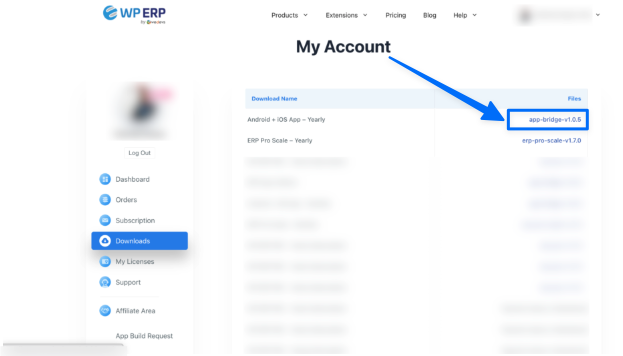
- The App Bridge plugin, ready to download
- Your ERP App license key, listed under Account → My Licenses
Sign in at wperp.com and open Account → My Licenses to confirm the ERP App key is there.
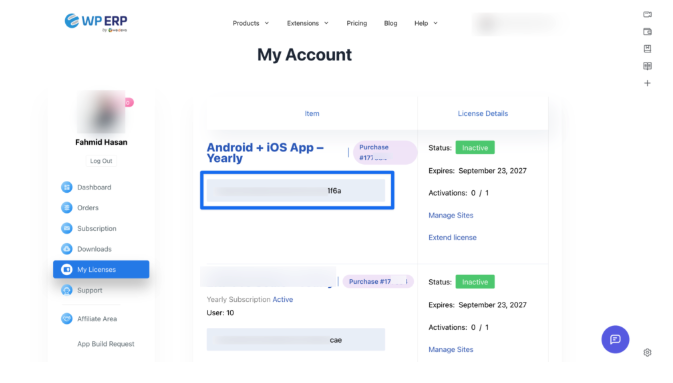
Keep this page open — you will copy the key in Step 4.
Step 2 — Install App Bridge
- Download the App Bridge plugin from your account.
- In your WordPress admin, go to Plugins → Add New → Upload Plugin.
- Upload the App Bridge file, install, and activate it.
Step 3 — Choose your plugin
App Bridge works with more than one weDevs product, so it asks which one you are using.
- Open App Bridge in your WordPress admin.
- Select ERP as your plugin.
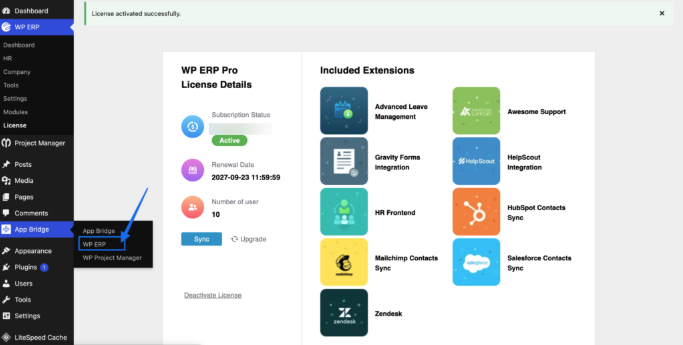
App Bridge now knows to connect to ERP and will read which ERP modules you run.
Step 4 — Activate your app license
- In App Bridge, go to License.
- Paste your ERP App license key (the one from My Account → My Licenses).
- Save to activate.
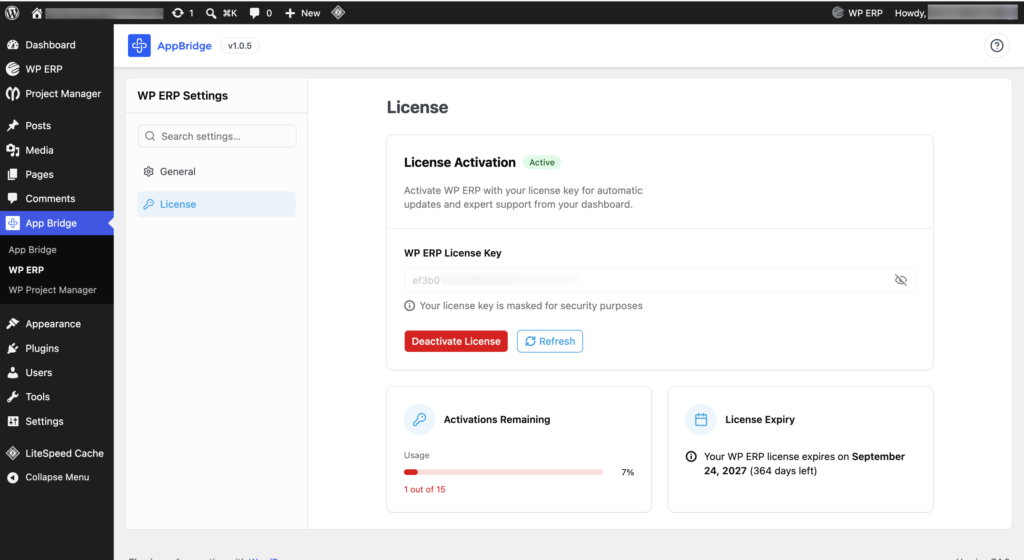
Use the ERP App key, not your Scale plan key. The Scale plan key activates ERP Pro on your site; it will not activate the app. Only the ERP App key entered here under App Bridge → License works. Entering it anywhere else, or entering the wrong key, will fail.
Step 5 — Download the app and sign in
- Install the FlyHR for ERP app from Google Play or the Apple App Store.
- Open the app and sign in with your WordPress account and tell your co-worker, employees to do the same. Users must be in the employee role to sign in.
That is the whole setup. From your phone, you can now check attendance, approve or reject leave, and run day-to-day HR.
Want your own branding?
The steps above set up the standard FlyHR app. To ship an app with your own name, logo, and colors, place a separate order and send us your brand details — see our Custom-Branded FlyHR App.

